

Release news Naviate for Revit
Naviate Accelerate December release news 2026 v26.2.0 and January 2025 2026.2.1
Release news for Naviate Accelerate. Release includes the new feature Colorize Tabs. There is also updates to Renumbver Elements, Edit Parameter Values and Tag Settings and more.
-
Feature
-
Update
-
Update
-
Update
-
Update
-
Update
-
Update
-
Update
-
Update
-
Fix
This release news includes Naviate Accelerate 2026 v26.2.0 and and January 2025 2026.2.1. The release is available on My Symetri -> Applications

Colorize Tabs
Included in version 2026 v26.2.0
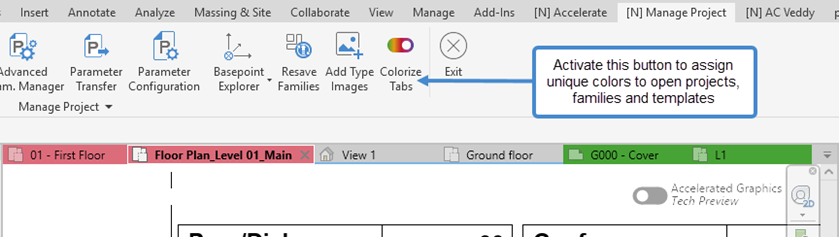
The new Colorize Tabs feature in Naviate Accelerate lets you instantly differentiate between open projects, families, and templates. Instead of all your tabs blending together, a simple click of the Colorize Tabs button in the Manage Project group will now automatically apply distinct colors to each open file.
- Project Files receive a solid fill color.
- Family Files are marked with a colored underline.
- Template Files get a dashed colored underline.
Colors are assigned when you click the Colorize Tabs button in Naviate Accelerate – Manage Project, and remain applied even after restarting Revit. This makes it easier to navigate between projects and content, reducing the risk of working in the wrong file.
Renumber Elements
Included in version 2026 v26.2.0 and 2025 2026.2.1
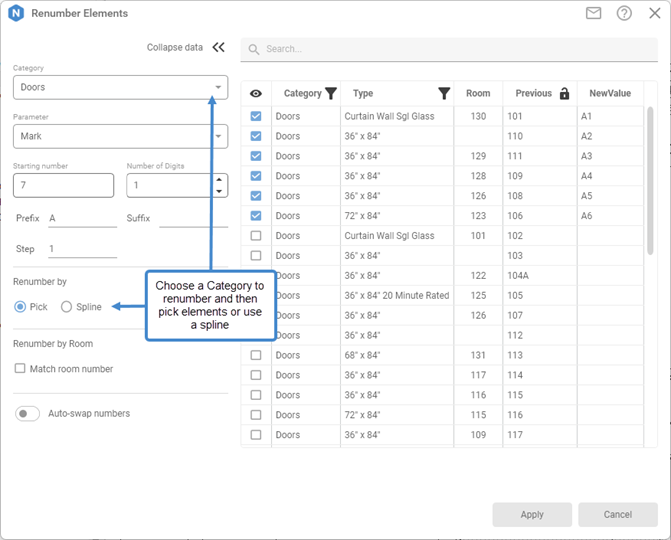
Renumbering elements with Naviate Accelerate has been streamlined and improved by merging the functionality of Quick Renumber feature into Renumber feature, creating a unified and more powerful Renumber.
This improvement covers all necessary renumbering workflows, providing greater flexibility when updating element numbering in your project.
The key improvement is that now no pre-selection is required when starting the Renumber feature. You can open Renumber and then select the desired Category and elements you want to renumber. Also, while picking the elements, numbering is updated live, dynamically as you select them in the view.
Naviate Assistant - Actions (beta)
Included in version 2026 v26.2.0
Naviate Assistant feature is further improved with the addition of one more function – Print Set Manager. Now you can create new, or edit existing Sheet and View sets with the help of AI.
To learn more about Actions and prompt samples, please visit this page.
Tag Settings - Extensible Storage
Included in version 2026 v26.2.0 and 2025 2026.2.1
Tag Settings are now stored directly within the project using Extensible Storage. Previously, configurations were managed through external XML files that required manual saving and importing. With this update, Tag Settings are automatically embedded in the project, removing the need for separate export steps.
Import and export functionality for XML files remains available. You can continue to bring in existing Tag Settings from older configurations or export current settings for use in other projects. Tag Settings can also be transferred between projects using Naviate Accelerate’s Transfer Project tool, available on the Link & Sync tab.
Edit Parameter Values - Pre-Selection
Included in version 2026 v26.2.0
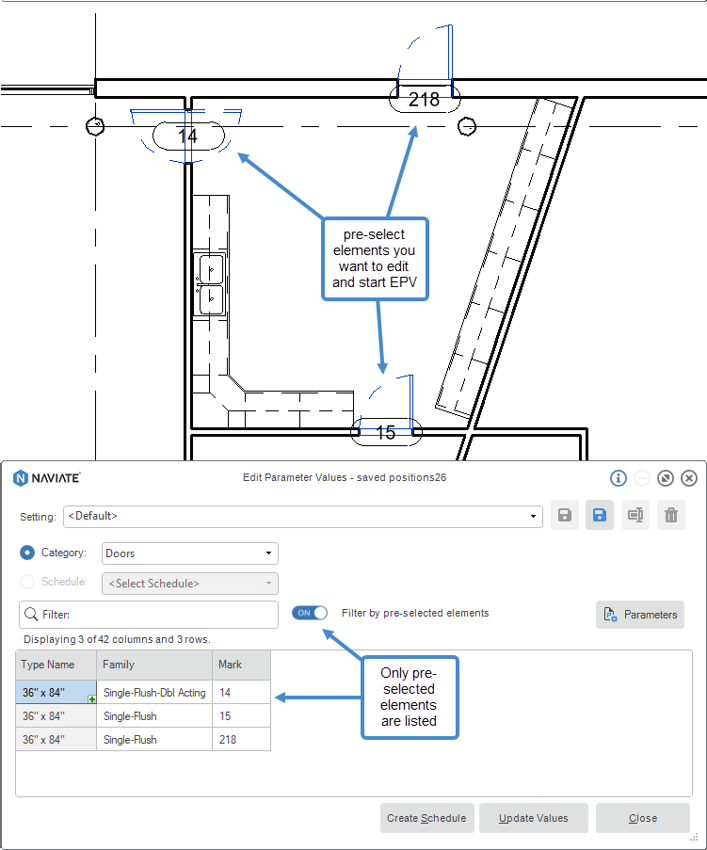
Edit Parameter Values feature is now enhanced with the support for pre-selecting elements. Previously the feature would list all elements from the project. Now you can pre-select elements and edit instance or type parameters of those elements. Pre-selection of schedules is also supported.
Edit Parameter Values - Saved Settings
Included in version 2026 v26.2.0
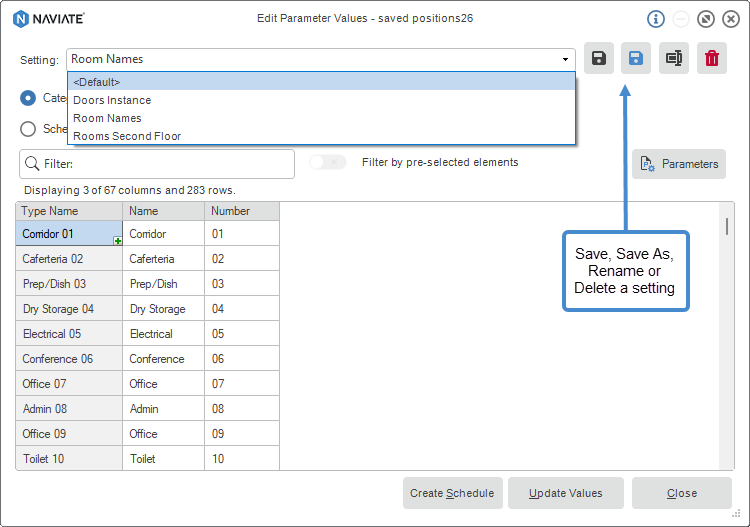
Now you can save previously configured settings in Edit Parameter Values feature for later reuse. These settings include:
- Selected Category, or Schedule
- Selected Type or Instance parameters
- The order of the parameters
- Order and widths of the columns in data grid
- Elements pre-selected (if there is pre-selection)
The settings are saved per project, but you can transfer these settings between different projects using Transfer Settings from Link&Sync tab in Naviate Accelerate.
Tag Settings - Tag Placement
Included in version 2026 v26.2.0
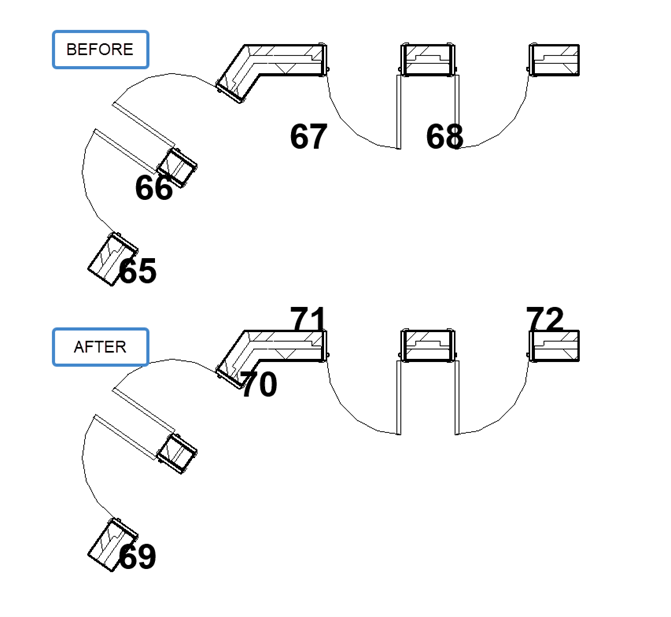
The placement of Tags is improved for Doors, Windows and Furniture categories. Previously, when choosing Top Left, Top, Top Right, Left, Right, Bottom Left, Bottom, or Bottom Right Tag location, the Tag was placed relative to the bounding box of the element. As a result, if the element is mirrored or rotated, you would get inconsistent placement of the Tag. That is now improved, and the Tag will always be placed relative to the element, even if the element is rotated or mirrored.
Duplicate Views
Included in version 2026 v26.2.0 and 2025 2026.2.1
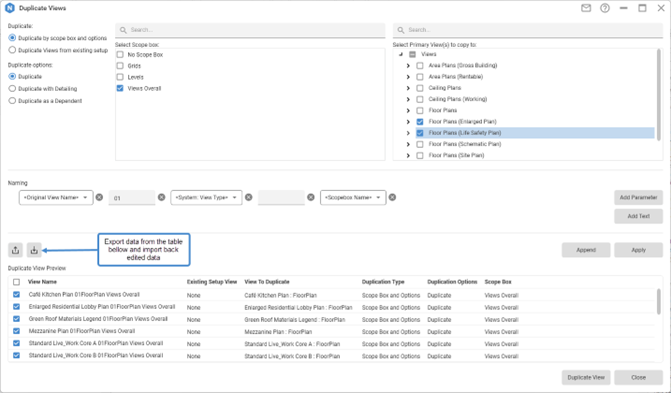
Now you can use the power of excel spreadsheet documents to duplicate views faster using the Duplicate Views feature. Two buttons are added to the interface: Export and Import. You can export contents of data table, edit it in excel by adding new rows or changing the values of existing rows and then import the table back to Duplicate Views.
Saved positions
Included in version 2026 v26.2.0
Revit 2026 introduced the ability to save a View’s position relative to a Sheet and reuse this placement for other Views.
Naviate has been updated to support this new parameter across multiple features:
- Inherit template view position when using a template View.
- Reuse one of saved positions for newly created Views to ensure consistent placement across Sheets.
This enhancement streamlines sheet setup and improves consistency in project documentation.
Fixes
- Combine Parameter Values – Fixed bug when settings were saved after closing the window using X button.
- Transfer Settings – Fixed issue preventing the feature to be used in 2026 version.
- Minor bug fix – Fixed a problem when having another plugin alongside Accelerate and printing linked sheets.
- Create Sheets – Disabled Auto arrange Views button when having multiple view types to prevent views duplication.
- Export/Import – Fixed bugs when working with Yes/No and Cost parameters.
- Place Views – Fixed issues with Check All option from right-click menu